Settings (Ctrl+, File → Settings, or your name at the top right) is a tab with a section for each kind of setting. They are stored in three different places, and knowing which is the difference between a setting that follows you and one that does not:
| Where it is stored | What it means | Sections |
|---|---|---|
| this browser | another browser, or another computer, has its own | General, Browser Storage |
| the mailbox | moves with the mailbox folder; applies to every window | Mail Accounts, AI Configuration, Logging, Profile |
the machine, ~/.iql/settings.json |
this computer, whichever mailbox | System |
Finding a setting
You don’t need to know which section a setting is in. Press Ctrl+K (⌘K) anywhere and type what you are after — dark mode, port, battery, gravatar — and choose it: Settings opens at that section, scrolls to the setting and outlines it for a moment. The Search settings box at the top of the Settings tab does the same from inside it, listing the matching settings under the sections.
Every word you type has to begin a word of the setting’s name, its section or the other names it goes by, in any order, so theme dark and dark theme both find the theme.
System
The section to open when you want to know what is going on. Help → About InboxQL opens it directly.
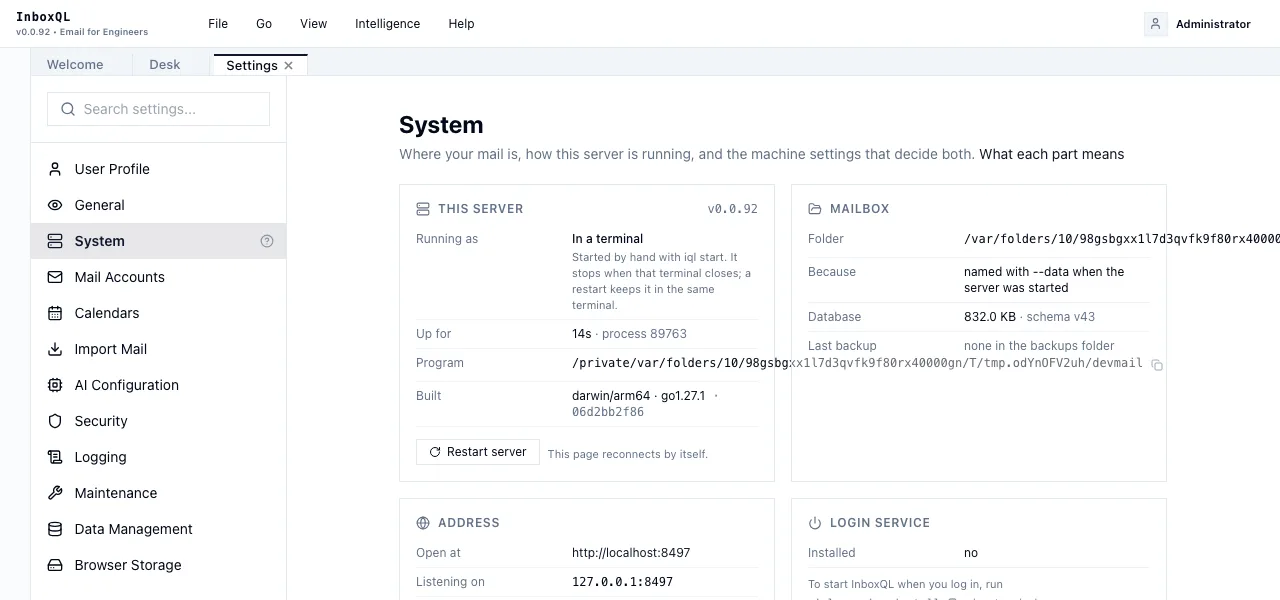
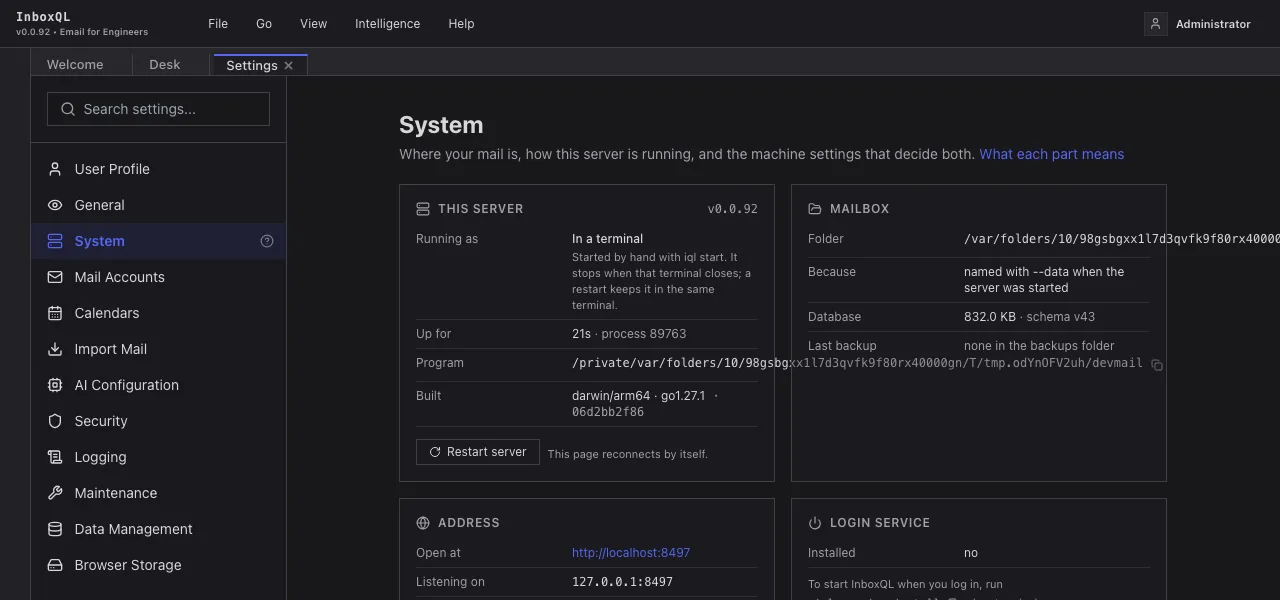
This server
Running as says how the server was started, because that decides how it restarts, when it stops, and which settings it obeys:
| Login service | Started by the operating system when you logged in; stops when you log out. The installed way. |
| In a terminal | Started by hand with iql start. Stops when that terminal closes. |
| Development | Started with iql start --dev, which restarts it whenever the program is rebuilt. |
It also shows the version, how long it has been running, its process number, and the path of the program file — the one to grant Full Disk Access to on a Mac.
Restart server restarts it in the way its mode needs: through the service manager, in the same terminal, or through the development supervisor. The page waits, then reloads by itself when the new server answers. If it does not come back within two minutes, the page says so and what to check.
Mailbox
Where your mail is stored, and why it is that folder:
| Because | |
|---|---|
| named by the machine settings | the normal case for an installed copy |
named with --data |
the server was started with a folder given explicitly |
named by $INBOXQL_DATA |
an environment variable chose it |
the ./data folder where it was started |
there are no machine settings, so it used the folder it was started in |
Also the database’s size and schema version, and when the newest backup in its
backups folder was made — worth a glance before updating.
Address
The address to open, what the server is listening on, whether it asks for a password (and why — see Privacy), and, if you set a site name, whether your hosts file has it yet.
Login service, Power, AI and models
Whether the login service is installed and running. Whether this computer is on battery, and so whether background work is waiting for mains power. Which AI provider is configured and whether it is on this computer or another — the one fact on the page about mail leaving the machine — and which local models are installed, and where.
Updates
Updates says whether a newer release exists; Check now asks again, otherwise it checks at most hourly. Update to … shows what will happen, then downloads the release, verifies it, backs up your mailbox, replaces the program and restarts the server, showing its progress as it goes. The page reconnects on the new version.
A copy installed with Homebrew says so and leaves updating to brew upgrade inboxql. Installing has the details.
AI assistants
AI assistants lists the AI coding tools on this computer — Claude Code, Codex, Gemini CLI — and
whether the iql skill is installed for each. The skill is a short guide that
tells an agent the rules before it starts: draft and queue mail, and send only
when you ask; how queries work; and that iql help agents has the rest. Install,
Update and Remove act on InboxQL’s own skill folder only; a folder named
iql that something else put there is left alone. See the command
line.
Machine settings
Machine settings is the editor for ~/.iql/settings.json. Each field says whether it applies
now or after a restart:
| Setting | Applies | |
|---|---|---|
| Mailbox | after restart | changed with Use a different mailbox…, below |
| Listen address | after restart | 127.0.0.1:8420 by default; keep it on 127.0.0.1 unless you mean other machines to reach it |
| Models folder | after restart | where model weights are kept, once per computer |
| Site name | now | e.g. inboxql.localhost; the hosts file still needs one command in a terminal, which it shows you |
| Heavy work on battery | now | let the annotation pass after a sync run on battery |
When saved settings differ from what the running server is using, a banner
lists each difference — Listen address: 127.0.0.1:8420 → 127.0.0.1:9000 —
with Restart now. If the server was started with a flag that outranks the
file, such as --addr, the banner says that a restart will not apply that
setting, rather than letting you restart and wonder.
Changing the listen address to anything other than this machine asks you to confirm first: anyone on the network could then reach the port, a password becomes required, and InboxQL has no TLS of its own, so it belongs behind a reverse proxy.
Use a different mailbox… takes the full path of a mailbox folder. If there is a mailbox there, the settings point at it and the server switches when it restarts. If there is not, it says so and offers to create an empty one — never silently, because a mistyped path is not a setting, it is a new, empty mailbox. Nothing is moved or copied; the old mailbox stays where it was.
A server running with no machine settings at all offers Create settings for this mailbox, which records the mailbox and address it is already using — so nothing changes now, but every command and the login service will agree from then on.
User Profile
Your name, email address and picture. Use my Gravatar asks Gravatar once for the picture of the address on the profile and keeps it in the mailbox, so the picture in the corner of every page is loaded from InboxQL rather than from Gravatar. You can also give any picture’s address yourself.
General
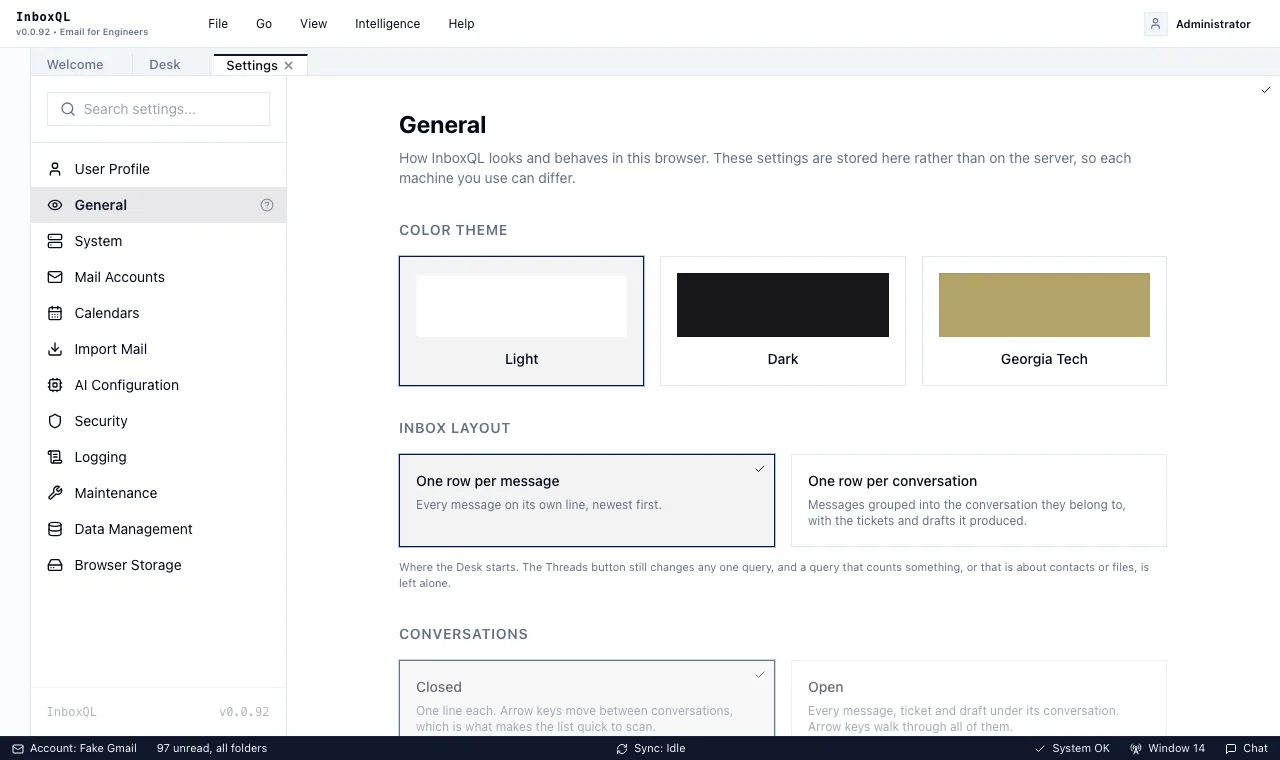
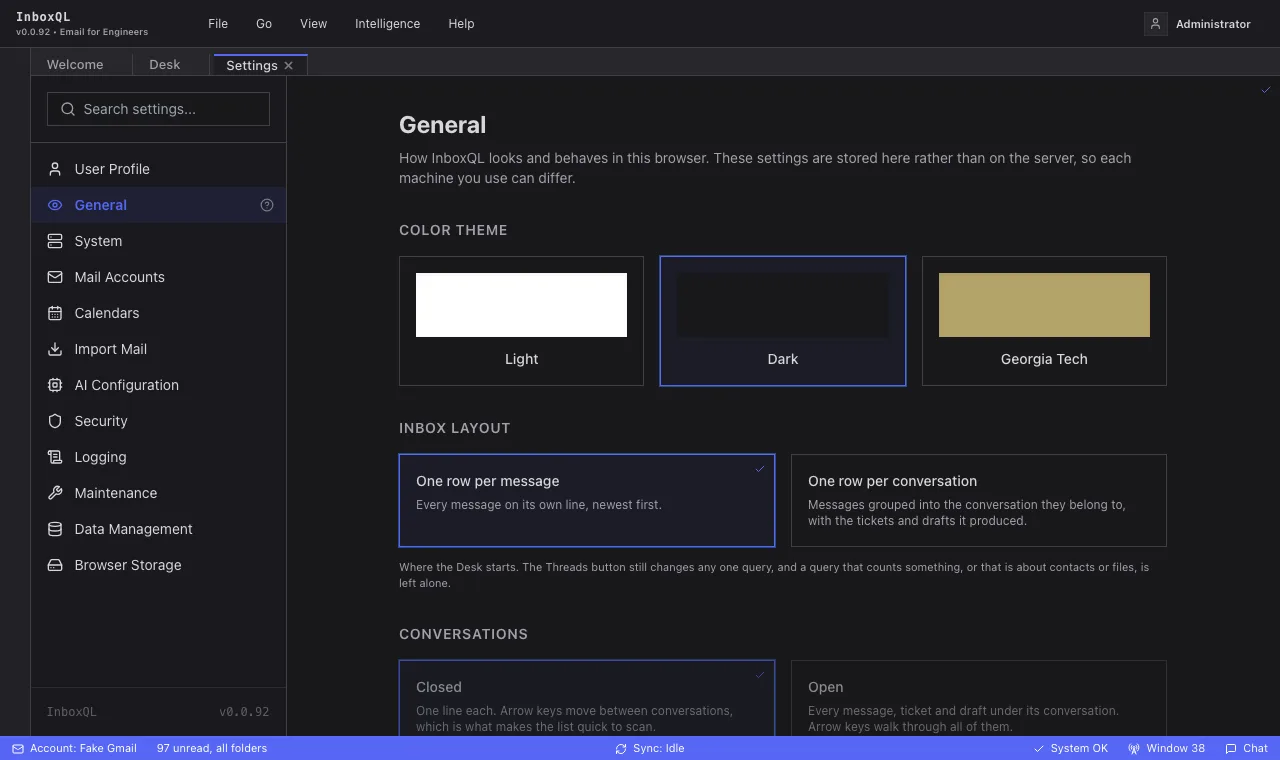
How the Desk looks and behaves in this browser: the colour theme, Inbox Layout (a row per message or per conversation), Conversations (start closed or open), Viewer Tabs (one shared tab or one per kind), and Attachment Previews (in the message, in the File tab, or both). The Desk’s default rail entries can be re-added here too. The Desk explains each.
Mail Accounts
Add an account from its address — the servers are worked out — or enter the settings by hand; sign in with Google for Gmail; test, edit, disconnect (keeping the mail) and remove. Each card says in a sentence whether the account is live, how much of its older mail is here, and how many changes are waiting to reach the server. Accounts covers it.
Calendars
Connected Google and Exchange accounts, with when each last synced, Sync now and Disconnect (which removes them from InboxQL only). Connecting Google needs a client ID from your own Google Cloud project; the page walks through it. Calendar has the details.
Import Mail
Bring in mail from Apple Mail, read-only. See Importing.
AI Configuration
Which model providers InboxQL may use — Ollama or Swama on this machine, or any OpenAI-compatible service — as named profiles, with a Remote or Local badge on each. It also holds the starter annotators, and the defaults for ticket proposals, similarity and topic extraction. Nothing here is used until you run something that needs it, and a remote provider is never sent a whole mailbox without your consent per annotator. See Labels.
Logging
What InboxQL writes in its own log, which you can read under View → Log or
query with in:logs: how slow a query must be to be recorded as slow, which
noisy categories to include, how many lines to keep, and whether the text of
your queries is written down. How much is logged — the level — is set in the
Log tab itself.
Maintenance
Jobs that work through the whole mailbox, with progress: Extract attachments, Read file contents, Read scans (OCR), Embed file text and Rebuild indexes. Anything that sends file contents to a model says so before it starts.
Data Management
Backups first, and erasing the mailbox last.
Backups
Backups lists every backup of this mailbox: when it was made, why (before an update, by you, on the schedule, or the mailbox a restore set aside), its size, what came with it, and whether it was checked. Beside the list is how much room backups take and how much the disk has left.
- Back up now makes a full copy of the database while InboxQL keeps running, then reads it back to check it is whole. Tick Include the vault key to copy the key that decrypts your account passwords beside it — a backup with its key is as sensitive as the passwords — and Include attachments to archive the attachment files too; they live outside the database.
- Check it reads an older backup back, for one made before backups were checked.
- Restore… replaces the mailbox with a backup. Type restore to go on; the server restarts, swaps the backup in before it opens the mailbox, and the page reloads. What was there is kept as a backup of its own, so the way back is one more restore. A backup made by a newer InboxQL is refused; an older one is upgraded when opened. Mail that arrived since syncs back from your server; anything imported since is not in the backup.
- Delete removes one, with its key and attachments beside it.
A backup needs about as much free space as the database. When the disk has less, InboxQL first removes the backups the keep rules would remove anyway once the new one exists; if that is still not enough, it stops before writing anything and says how much it needed. Updates follow the same rule, so an update never fills the disk with a half-written backup.
Which to keep, and how often
Keep rules: how many backups taken before updates to keep (2), how many scheduled ones (2), and how many mailboxes set aside by restores (2). After every new backup, older ones beyond these are removed — never the newest backup, and never one you made yourself; yours stay until you delete them.
Back up automatically every day or every week, off to begin with: each is a full copy, and that is a decision about disk space. Scheduled backups are made while InboxQL is running, and on battery they wait for mains power like other heavy work.
Erase
Erase All Local Data deletes every stored message and attachment from this mailbox. Your mail on the server is untouched and will sync again; imported mail will not come back. There is no undo, so the section says when the last backup was, offers Back up first when there is none from the last day, and asks you to type erase.
From a terminal: iql backup, iql backup list, iql backup check,
iql backup prune, iql backup policy and iql restore — see
iql help backup.
Browser Storage
What this browser has stored for InboxQL — the window layout, a cached profile — with Reset Layout for a layout that has got into a muddle, and Clear All Browser Storage. None of it is your mail.