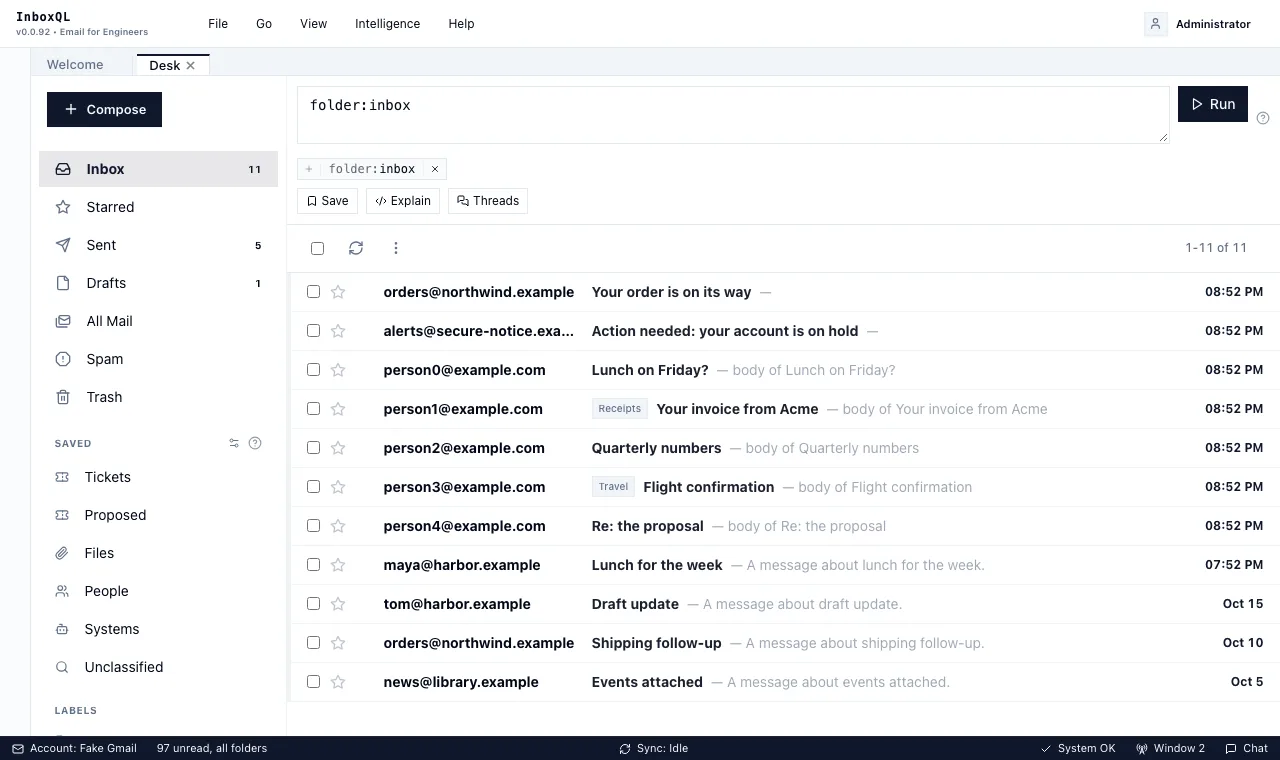
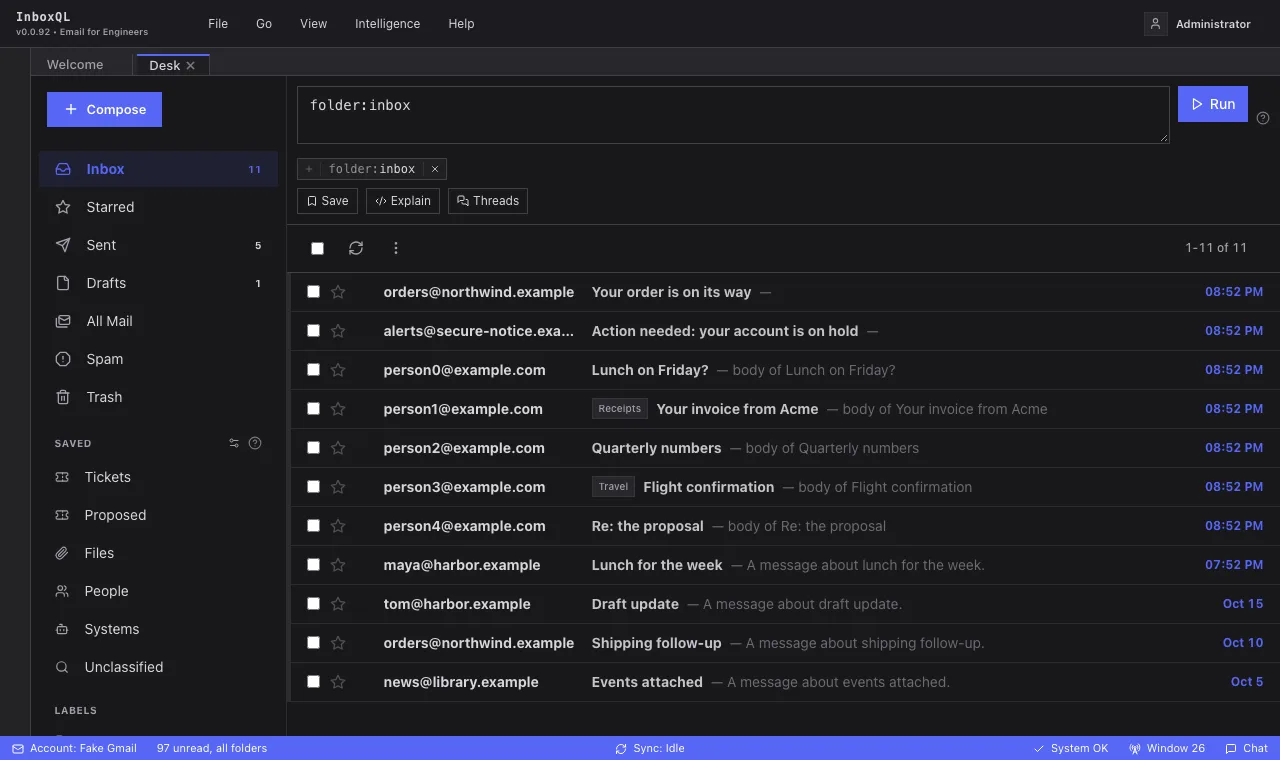
The Desk is where mail is read and dealt with. A folder is always
selected — Inbox, to begin with — and everything else is added to it: a
label, a filter, a few words. Underneath, it is all one query: the Inbox is
folder:inbox, a label is label:banking, and what you add shows in the bar
as the terms you could have typed, so the Desk teaches the query language
simply by being used.
Open it from Go → Desk, or press g then d.
The rail
The column on the left has three kinds of row, kept apart because they behave differently.
All Items at the top searches everything at once — see All Items.
Inbox, Starred, Sent, Drafts, All Mail, Spam and Trash are the mailbox itself. One of them is always the folder you are in: choosing another keeps what you had added, so Inbox › banking becomes All Mail › banking. You can hide one you never use; you cannot delete it, because it is the mail. Reset brings hidden ones back.
They are labels, not folders, as in Gmail: a message carries any number of labels, so your reply to a thread is in Sent and under Receipts at once. Inbox is mail with the Inbox label; archiving takes the label off, and the message stays in All Mail. Spam and Trash keep their mail out of every other view. On Gmail these are Gmail’s own labels, kept the same both ways.
Saved queries are yours. Six arrive with a new mailbox — Tickets, Proposed, Files, People, Systems and Unclassified — and they are ordinary saved queries: rename them, change their icons, reorder them, or remove them. A saved query about mail runs inside the folder you are in; one that names its own folder or kind — Files, People — keeps it. Arrange (the button at the top of the rail) shows the controls for moving, editing and removing; editing a query never moves it.
To save the query in the bar, use Save beside it and give it a
name. A saved query is also a term — saved:clients after:7d is “the clients
query, this week” — so saved queries are building blocks, not just bookmarks.
Labels lists your labels — the ones you made, and on Gmail the ones you
made there — and below them the labels and extractors an annotator has found
something for, marked with a sparkle. Both kinds answer to label:.
Clicking a label adds it to the folder — Inbox › banking — and clicking
it again takes it off; two labels combine. The section is derived, so it
cannot be arranged: it would be out of date the next time one of them ran.
The counts preview the click
Every number in the rail is what clicking that row would show you.
- Labels count inside what you are looking at. On Starred, banking 12 means twelve starred messages carry banking; a line over the section says so — In Starred — and each count’s tooltip reads “12 of 40 in Starred”. A label you have already added shows the list’s own total.
- Folders, once something is added, count it inside each folder: on Inbox › banking, All Mail 31 is all your banking mail, under a line reading With label:banking. With nothing added they show their usual numbers — unread in Inbox and Spam, totals elsewhere. Drafts always count your drafts, and open on their own: a draft has no labels to add.
- A row at zero is dimmed, not hidden, so the rail keeps its shape as the query changes.
- In All Items, the words you searched are what is counted: each folder and label shows the mail matching them.
The counts arrive just after the list; until they do, the previous numbers stay, dimmed. On a query about something other than mail — Cards, Files, People — the rail shows its plain totals.
The query bar
In front of the bar is the folder — Inbox › — and the bar holds what you add
to it. Type and press Enter; the folder is put back in front when it runs.
Typing a folder or a kind of your own (folder:sent …, in:contacts …) uses
that instead. While you type, the bar suggests fields, values — real
addresses from your mailbox, your labels, your folders — and says what a term
means. Tab accepts a suggestion.
Under the bar are quick filters, one click each, for what the folder
holds. For mail: Unread, Starred, Attachments, Important and
Low (as the importance element judged the conversation), From people
and From systems, and Waiting on me. Cards, files, people and events
have their own. Each adds a term you could have typed — importance:low,
sentby:system — and clicking it again takes it off.
Builder shows the query as pills, one per term, to edit by hand; it is off unless you turn it on. The query language guide covers what you can write.
What you get back depends on what you asked:
| You asked for | You see |
|---|---|
a filter, such as from:alice |
a list of messages |
in:contacts, in:attachments, in:drafts, status:todo |
contacts, files, drafts or tickets |
| count by week, | top from 10 |
groups, with a chart |
| series receipts.amount by month |
a time series |
a bare | count |
one number |
The list loads more as you scroll; there is no page size to choose.
Reading
Move through any list with the ↑ and ↓ arrow keys. The row you are on stays outlined, and the message opens in the viewer beside the list as you arrive on it. Enter opens it properly; clicking does the same.
Select several with Shift-click or ⌘/Ctrl-click. A bar appears above the list with what you can do to all of them at once — mark them read, unread or starred, Archive, Move to Inbox, Trash, Spam, Label — and Narrow to these, which turns the selection into a query.
Links and images
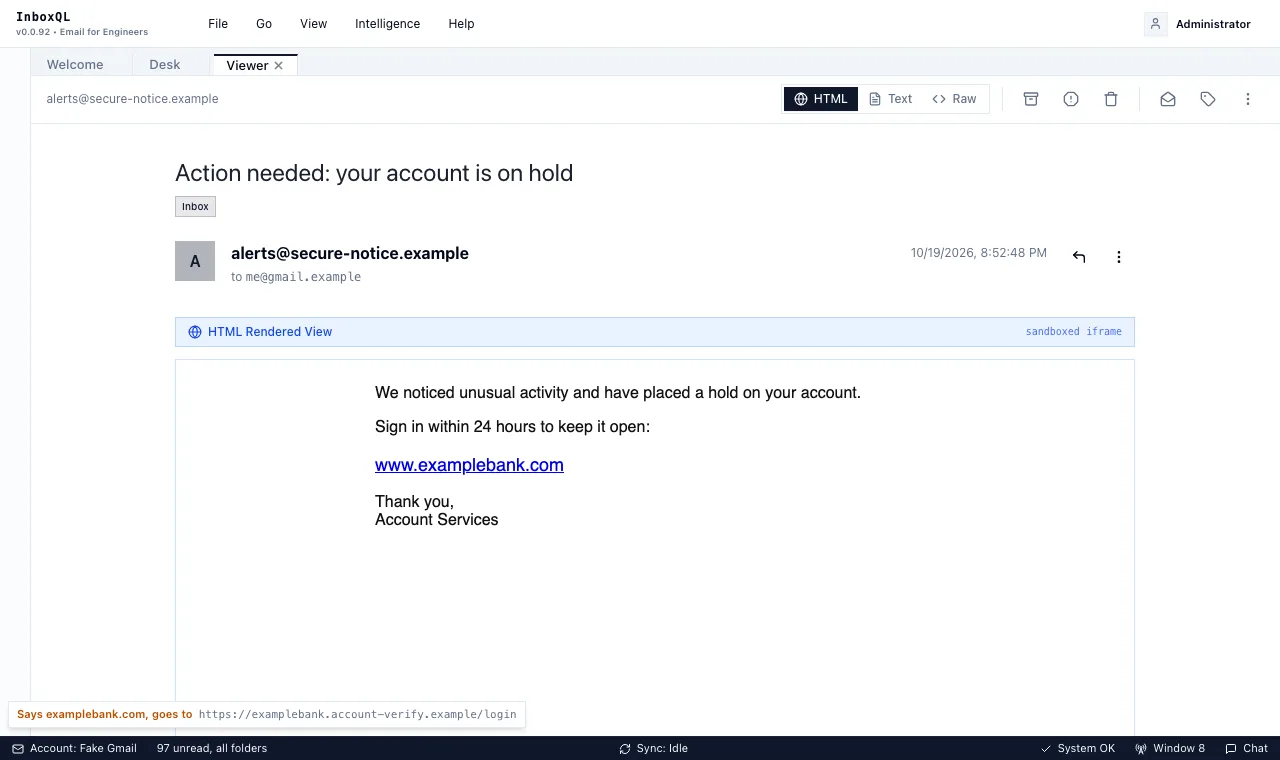
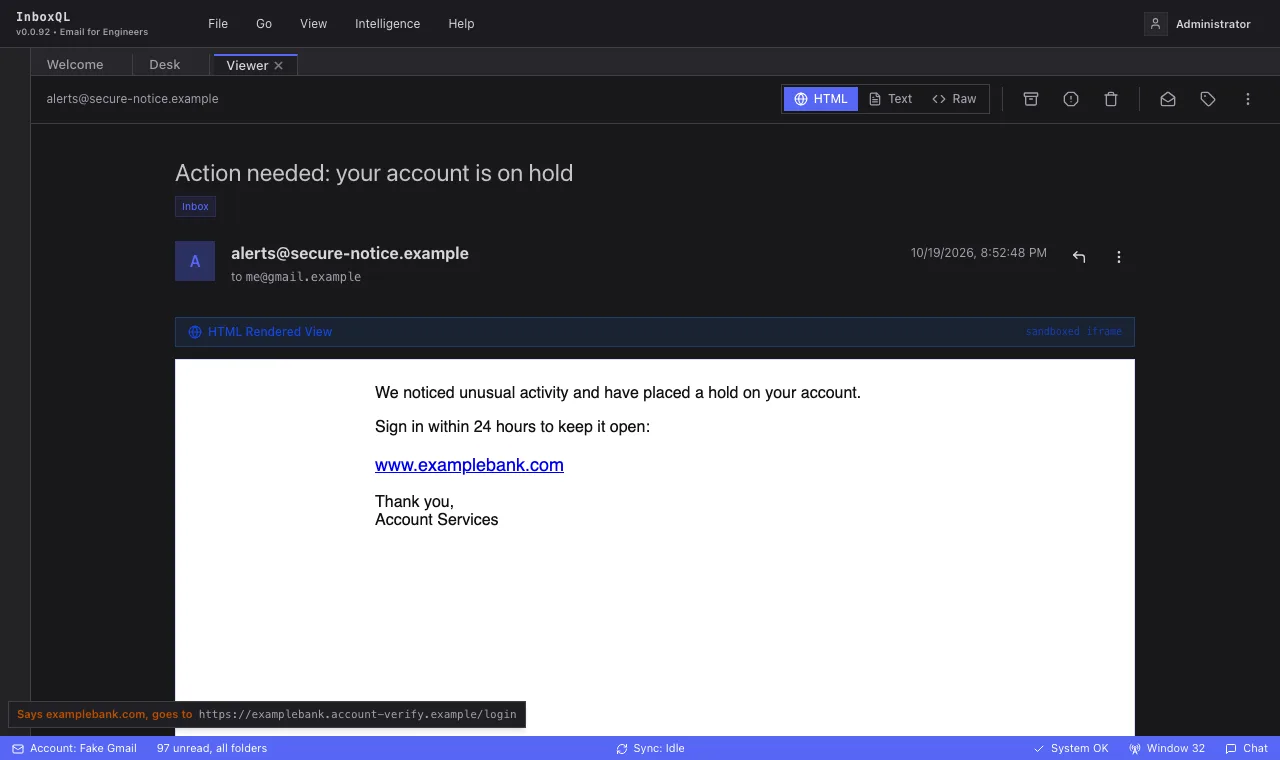
Links in a message open in a new browser tab. Hover over one, or tab to
it, and the address it really goes to shows at the bottom left of the window.
When the link’s text names a different site — www.paypal.com on a link to
somewhere else — that is said in amber first, because it is what most
phishing relies on. An email link (mailto:) opens New message, filled
in, and a link to elsewhere in the message scrolls there. Anything else — a
script, a local file — does nothing.
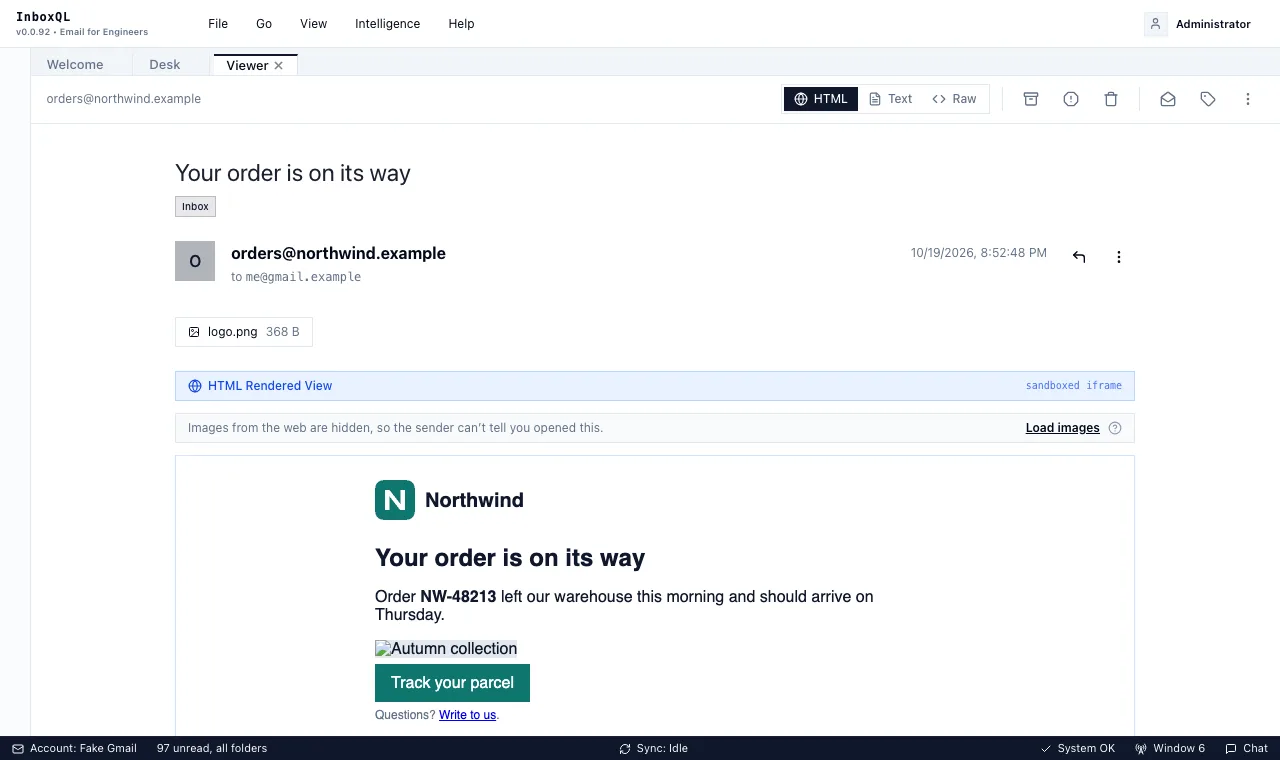
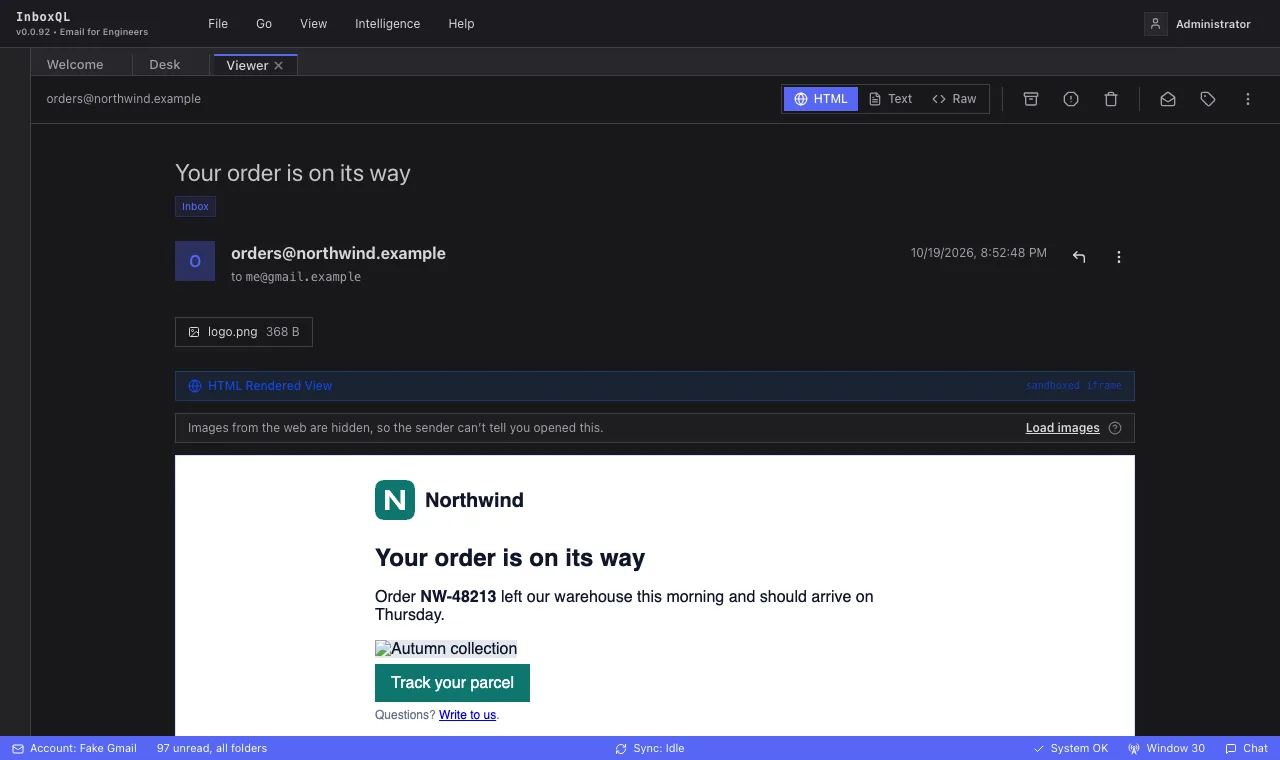
Images from the web wait until you ask. Loading one tells the sender you opened the message, when, and roughly where from — that is all a tracking pixel is. A message with any shows a bar above it; Load images shows them for that message. Images carried inside the message itself — a logo, a pasted screenshot — are shown as usual.
Archiving and labelling
The viewer’s toolbar has Archive (or Move to Inbox for mail that is not in it), Report spam, Move to Trash, Mark read/unread and Label. The star on each row stars it. Label lists your labels with a tick on the ones the message has; type to find one, or type a new name to create it.
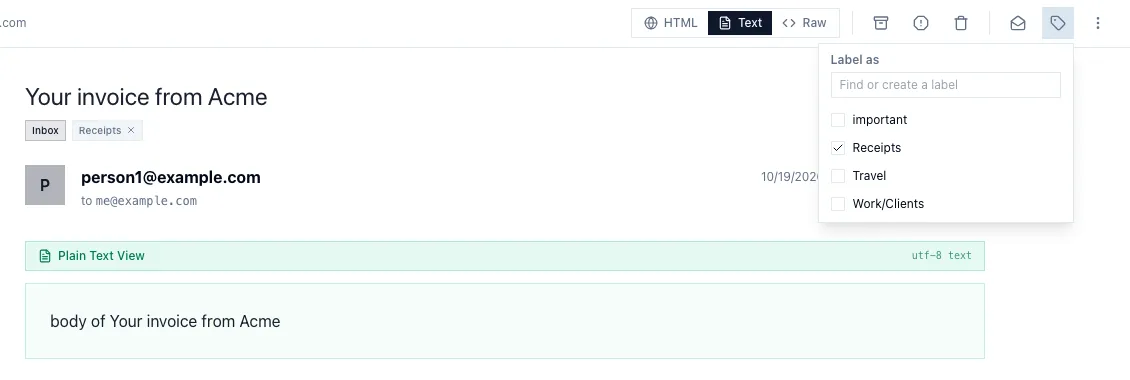
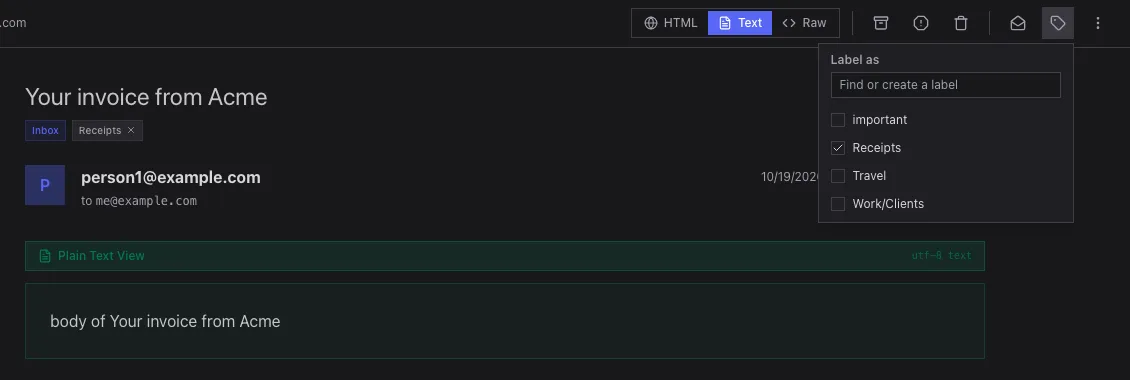
Your labels show as chips on each row and under the subject; click one to see everything with that label, or its × to take it off.
Every change is made here at once and sent to the account’s server, which applies it within seconds — archive here and the message leaves the inbox in Gmail too. A change made on your phone comes back the same way. If the server cannot be reached, the change waits, and the account’s card in Settings → Mail Accounts says how many are waiting.
Trash is a label like the others, and InboxQL never deletes anything from the server; emptying the trash is the server’s business.
The chips an annotator puts on a message show beside the subject in the viewer. Right-click one (or press the menu key on it) to say whether the label is right; see teaching an annotator.
Dealing with a lot of mail at once
Select every match. Tick the box at the top of the list to select the page; when there is more than the page, InboxQL offers Select all 1,234 in Inbox › Low. Then Archive, Mark read, Star, Trash, Spam or Label… act on all of them — on the server, not page by page — and say how many changed, with Undo, which puts back exactly what changed and nothing else.
Group by (beside Threads) shows the folder in groups — by Sender, Domain, Importance or Kind of sender — each with its count and Archive all, Mark read and Label… for the whole group, and Show to open it. Clearing every newsletter from one shop is two clicks.
So archiving all the low-importance mail in the inbox is: Inbox, Low, the box at the top, Select all, Archive.
All Items
All Items searches mail, files, cards, people and events at once and
shows each kind’s matches side by side, with See all to open that kind on
its own. Words find text anywhere; from:acme finds Acme’s mail, the files
they sent, the cards their mail raised, and them. A term one kind has no use
for leaves that kind out, saying so. Acting on things — archiving, moving
cards — happens inside one kind, where an action means one thing.
Conversations
Settings → General → Inbox Layout (or View → Conversations) chooses between one row per message, newest first, and one row per conversation: messages grouped into the conversation they belong to, together with any tickets and drafts it produced.
With conversations on, Conversations chooses whether each one starts closed — one line each, which is quickest to scan with the arrow keys — or open, showing every message, ticket and draft beneath it. Open or close any one by hand and it stays that way while you work. A very long conversation shows its 25 most recent entries and says how many more there are.
Conversations follow the References header that mail clients write, so two
unrelated messages that happen to share a subject are not merged. A client
that leaves that header out can split one conversation into several, which is
the safer mistake.
Viewer tabs
Messages, contacts and files open in viewer tabs. Settings → General → Viewer Tabs, or View → Viewer tabs, chooses between one shared tab, where opening anything replaces what was there, and a tab for each kind, so opening a file leaves the message you were reading where it was.
Attachment Previews decides where a file you click on opens: in the message, below its attachment chips; in the File tab, on its own, with every message that carried it; or both at once.
Writing mail
Compose, File → New message or c opens a new message. Send (or ⌘/Ctrl+Enter) sends it: a bar at the bottom left counts down a few seconds with Undo, which brings it back to Drafts, and then says it went. Save draft keeps it under Drafts; open it there and press Send when it is ready.
What you send is under Sent at once. On Gmail, Gmail files it; on other servers InboxQL puts a copy in the server’s Sent folder. If the server refuses it, the bar says why and the message waits in Drafts.
Waiting for approval
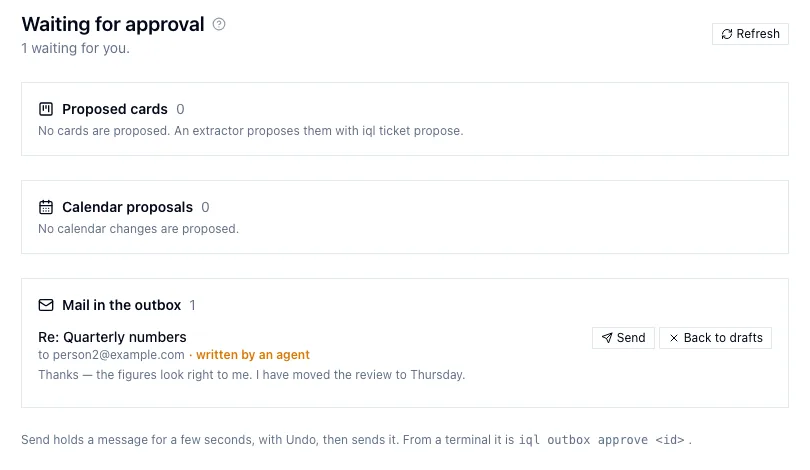
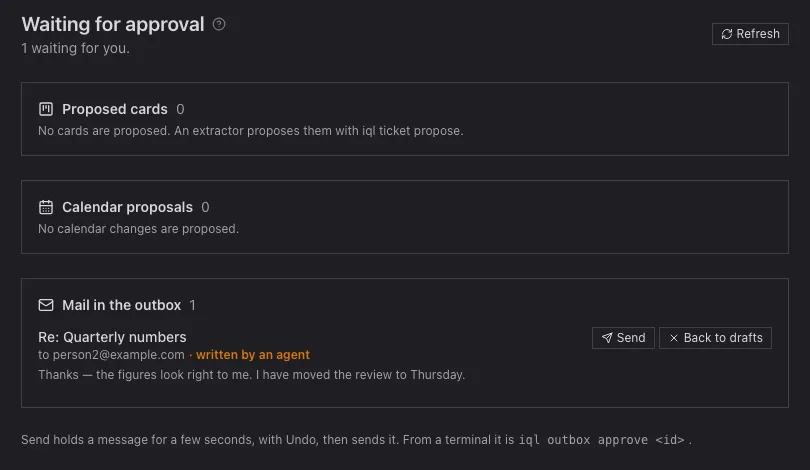
Intelligence → Waiting for approval (g a) gathers everything waiting
on you in one place: cards an extractor proposed (Accept or Reject),
calendar changes an agent proposed (Approve or Reject), and mail
queued in the outbox — typically written by an agent — with Send and
Back to drafts. From a terminal, iql outbox approve <draft-id> sends one.
Keyboard
Ctrl+K (⌘K on a Mac) is Find anything: every command, every place, every setting and every saved query, matched as you type. Choosing a setting opens Settings scrolled to it. It is the one to remember.
The rest are short sequences — press g, let go, then the letter. Keys typed into a field are never taken, so none of these get in the way of writing.
| Keys | |
|---|---|
| g d | the Desk |
| g c | the Calendar |
| g b | the Board |
| g p | Contacts |
| g f | Files |
| g a | Waiting for approval |
| g s | Settings |
| c | new message |
| t | new task |
| ? | this list, in the app (Help → Keyboard shortcuts) |
| ↑ ↓ | move through a list |
| Enter | open the row |
| e | archive the selection, or the row you are on |
| # | move it to Trash |
| ! | report it as spam |
| l | label it |
| s | star or unstar it |
| Shift+I, Shift+U | mark it read, or unread |
| x | select the row you are on, or take it out of the selection |
| * a, * n | select the page, or nothing |
| F1 | the documentation |
| Ctrl+, | Settings |
| Ctrl+I | the chat panel |
The older Ctrl+Shift shortcuts — M for the Desk, F for search and the rest — still work, but several of them are browser shortcuts on Windows and Linux, so they are no longer what the menus show.
With every match selected, e, #, !, s and Shift+I/U act on all of them.
In the query bar: Enter runs the query, Tab takes a suggestion, ↑ ↓ move through suggestions, Escape closes them.
Everything is a tab
The Desk, Contacts, the Board, Settings and the rest are tabs in one window, and you can split and rearrange them. The layout is remembered per browser.
Windows
View → Windows lists every window you have open on this mailbox: its name, whether it is live, and what it is showing — its query and its tabs. Each also says what it was last told and why, which is useful when an agent has pointed one of them at something, because what it did is recorded there. The box on a window’s card points it at a query yourself.


The Log
View → Log is what InboxQL has been doing — syncs, imports, annotator runs, model calls, slow queries — newest first, each line with its level and the part of the program that wrote it.


Two controls look alike and are not. showing hides lines that were recorded; recording decides what is written at all. Debug is loud — a sync writes thousands of lines a minute — so turn it back down once you have found what you were after. What else is recorded, and how slow a query has to be to count as slow, is under Settings → Logging.
The same lines are a query, which is where questions get asked:
in:logs level>warn after:7d, or in:logs | count by category.
The Dashboard
Go → Dashboard (Ctrl+Shift+D) charts the folder you are in: how much arrived each day of a year, who writes most, what it is about, how much of it matters, and whether people or systems sent it. It charts the Desk’s query, so the folder stands in front as a chip — Inbox › — with a picker to chart another, such as All Mail, and the pills after it are what you added. Clear takes those off and keeps the folder; Open in Desk shows the same mail as a list, to read, archive or save.
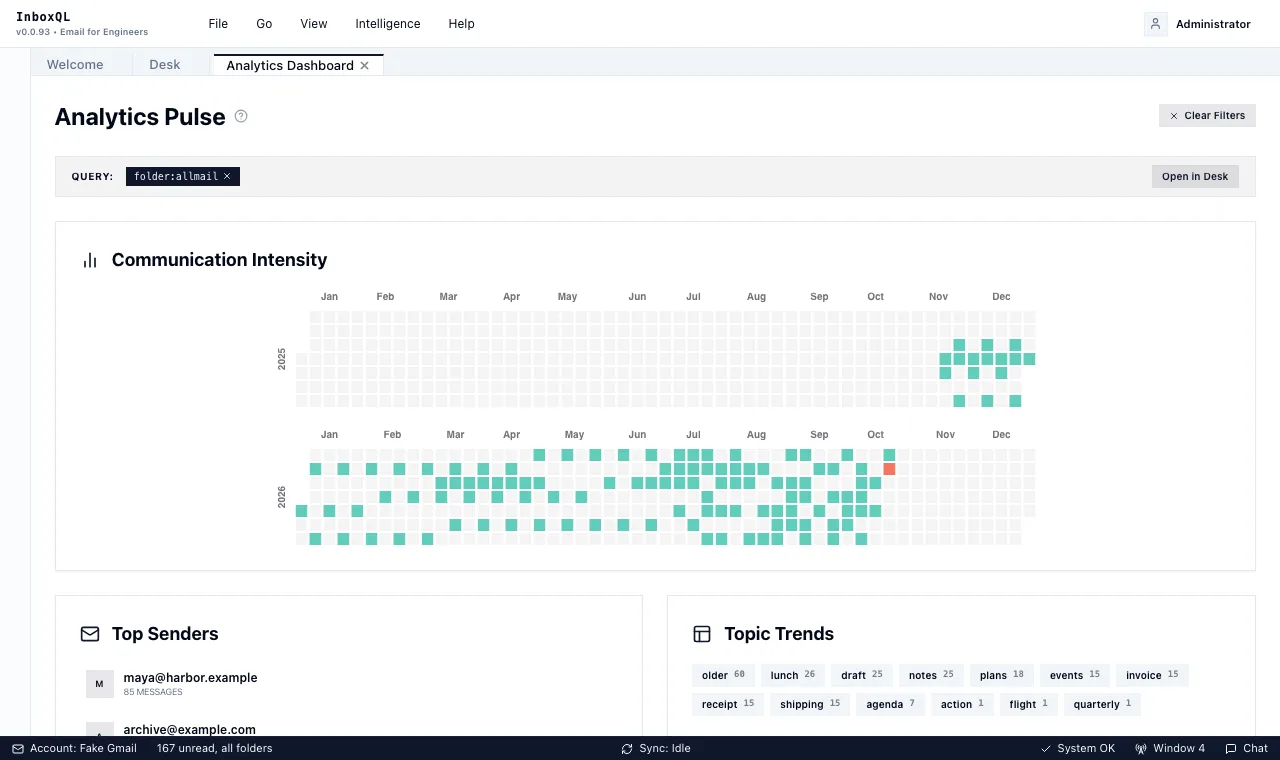
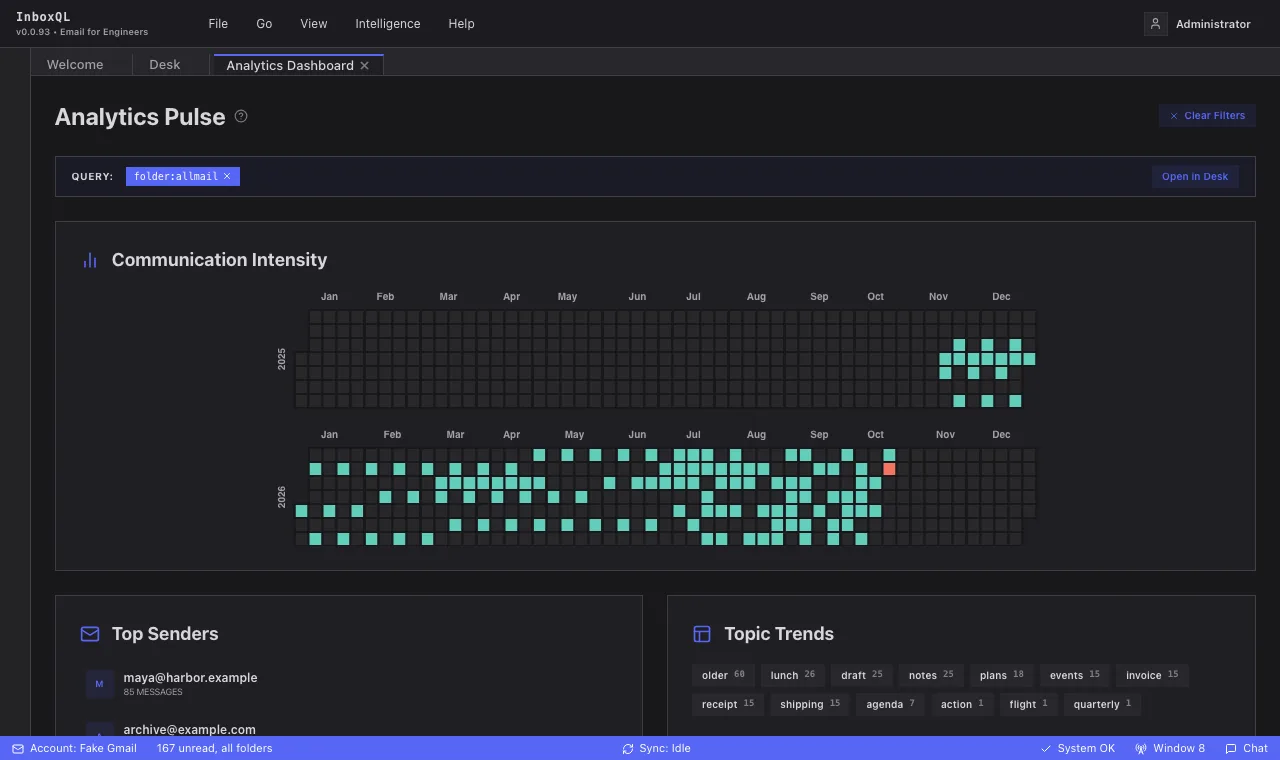
Clicking a chart adds exactly what it counted. A sender adds from:=
that address — not every address containing it — and a card’s heading names
what it is narrowed to. Click it again to take it off.
- The calendar shows one year; the arrows step between years, and a query
on a day of another year opens on that year. Click a day for
on:it. - Topics are the ones an annotator extracted, which add
topic:=. Where nothing was extracted, a subject’s first word stands in, without the punctuation around it, shown in italic; a click on one finds subjects containing that word. - Importance and Kind of sender count the conversation’s importance
and who sent the mail, best first; a click adds
importance:loworsentby:system, ready to open in the Desk and archive at once. Mail not judged yet is a line under the bars — Not judged yet: 751 of 905 — rather than a bar that dwarfs the rest.
The charts follow the mail: a move, a bulk action, Undo or new mail updates them. Each card draws as soon as its own numbers arrive, and while it reloads its previous numbers stay, dimmed — Importance over All Mail can take a few seconds, and the others do not wait for it. On Cards, Files or People the dashboard says it charts mail and offers Chart All Mail.