Mail reaches InboxQL in two ways. An account connects to a mail server
over IMAP and keeps a full copy of it, current both ways. An import reads
mail that is already on this computer — Apple Mail’s own files, or a folder of
.eml messages — once.
Both end up in the same mailbox and are queried the same way. The difference
is only where the mail came from, which account: and mailbox: still tell
you afterwards.
Adding an account
Settings → Mail Accounts → Add account, then your address and Continue. InboxQL works out the servers itself and says where it found them:
- its own list of the large providers — Gmail, iCloud, Outlook.com, Yahoo, AOL, Fastmail, Zoho, GMX, Proton — and, from a domain’s mail records, a company domain whose mail is on Google Workspace or Microsoft 365;
- the settings your domain publishes, in the format Thunderbird defined;
- your domain’s DNS service records.
All three ask only your mail domain and DNS — the places you are about to connect to anyway. If none answers, the page offers a fourth: Mozilla’s directory of mail providers. That one asks a third party, so it is a button rather than automatic, and it tells Mozilla the domain — never your address.
Then the password, and Sign in and add: InboxQL signs in to both the incoming (IMAP) and outgoing (SMTP) server before saving anything, and says plainly what went wrong if either refuses — the password was rejected, the server name does not exist, it did not answer, or its certificate is not trusted. Saving connects the account, and from then on it is live — see Keeping a copy.
Enter settings manually opens the full form, for a server nothing could find or one you want to set yourself:
| Field | What to put |
|---|---|
| Incoming server and port | imap.example.com, 993 almost everywhere |
| Encrypted from the start | on for port 993; off means STARTTLS, usually on port 143 |
| Username | usually your full address |
| Password | for most providers with two-step sign-in, an app password |
| Outgoing server and port | only needed to send; 465 is encrypted from the start, 587 uses STARTTLS |
| Own username and password | only if the outgoing server’s login differs from the incoming one |
A password is never sent unencrypted, whichever you choose: a server that offers no encryption is refused. InboxQL always verifies a server’s certificate; there is no setting to turn that off.
Providers that need more than a password
| Provider | What it takes |
|---|---|
| Gmail, Google Workspace | Sign in with Google, or an app password (needs 2-Step Verification) |
| iCloud | an app-specific password, from account.apple.com |
| Yahoo, AOL, Fastmail | an app password, from the account’s security settings |
| Zoho, GMX | IMAP switched on in the provider’s settings first |
| Outlook.com, Microsoft 365 | not yet — Microsoft has switched off password sign-in for IMAP, and InboxQL cannot yet sign in with a Microsoft account. Import the mail instead. |
| Proton Mail | Proton Mail Bridge, running on this computer, then its address and password under Enter settings manually |
The Add page says which applies, with a link to where the app password is made.
Gmail
Sign in with Google connects Gmail without an app password: Google asks you to allow InboxQL, and this computer keeps the sign-in. Tick Connect this Google account’s calendar too and the same consent connects your calendars.
Google lets an app read mail only through an OAuth client, and until InboxQL has a verified one of its own, you use one from your own Google Cloud project. If you have already connected Google Calendar, it is the same client and InboxQL reuses it without asking. Otherwise, about five minutes, once:
- In the Google Cloud console, create a project.
- Under OAuth consent screen, choose External, fill in the names, and add your own Google address as a test user.
- Under Credentials, choose Create credentials → OAuth client ID, of type Desktop app.
- Paste its client ID and secret into the Sign in with Google box.
Google shows a warning that the app is unverified, because it is your own; that is expected. The sign-in asks for full access to Gmail — Google has no narrower permission that IMAP accepts. It is kept, encrypted, in your mailbox’s vault, and used only to talk to Gmail directly.
From a terminal:
INBOXQL_ACCOUNT_PASSWORD='app-password' iql account add --email me@example.com
iql account discover me@example.com   # what it would use, and where it looked
iql account verify work               # sign in to both servers, and say what is wrong
iql account sync work                 # returns when it has all of the mail
--host and the other server flags are only needed when nothing can be found,
or to override what was. Passwords are never command-line flags, because those
end up in your shell history and are visible to every other program on the
machine. They come from an environment variable, standard input, or a prompt.
What happens to the password
It is encrypted with AES-256-GCM using a key kept beside your database,
vault.key, and it is never sent back to the browser — the account form shows
that a password is stored, not what it is. Leave the field empty when editing
and the stored one is kept.
One exception: change either server, the port or the username and you must type the password again. A credential for one server is not a credential for another, and InboxQL will not present it to a host it was not given for.
Each account’s card
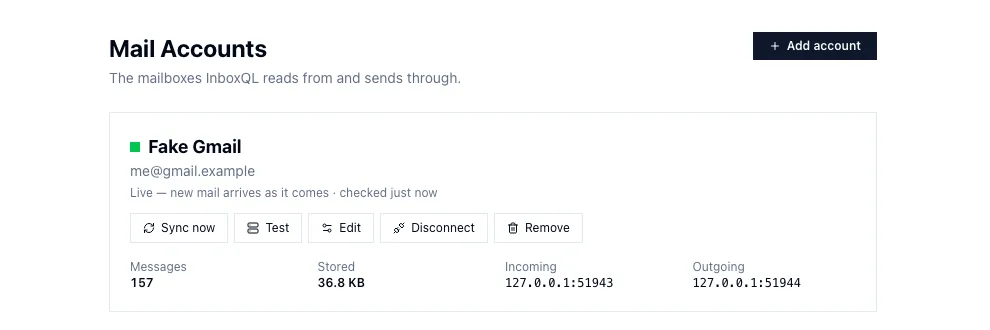
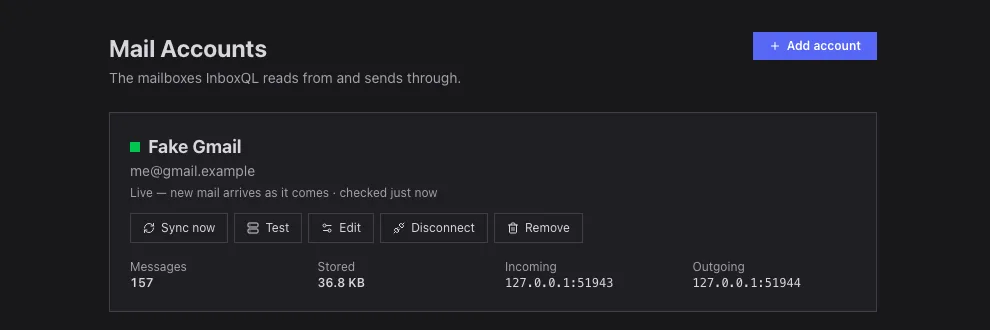
The card says how the account is in a sentence — Live — new mail arrives as it comes, Live, and fetching older mail: 12,400 of 140,000, or what went wrong and when it tries again, with a link to fix it — and how many changes made here are still waiting to reach the server. Sync now looks at everything at once, rather than waiting; Test signs in to both servers, as adding did; then Edit, Disconnect and Remove.
Keeping a copy, both ways
While InboxQL is running — and as the login service, it always is — every connected account is live:
- New mail arrives in seconds. InboxQL keeps a connection open and the server tells it the moment something lands (IMAP IDLE). Nobody has to press Sync.
- All of the mail, newest first. The first time, InboxQL reads the whole account, every message and attachment — the newest first, so today’s mail is there within minutes and the years behind it fill in while you work. A large account takes a while: Gmail lets a program download about 2.5 GB a day, so a big mailbox can take a few days to finish, by itself. It picks up where it left off after a restart.
- Changes go both ways. Archive, label, star, read or trash something here and the server does the same within seconds; do it on your phone and it happens here. If the two disagree, the server wins — except for a change made here that has not reached it yet.
- Nothing is deleted from the server. Trash is a label; emptying it is the server’s business. A message the server deletes for good stays here, in Trash.
Gmail is read the way Gmail stores it: one copy of each message, with Gmail’s labels — Inbox, Sent, Important and your own — kept as InboxQL’s labels, so archiving here archives in Gmail and a label made in Gmail turns up here. Only Gmail’s All Mail, Spam and Trash are read, so nothing is downloaded twice. Other servers have folders: every one is read, and each becomes a label of its name. Archiving moves a message to the server’s Archive folder; a label you make here stays here.
Mail you already imported is recognised, not downloaded again. If you imported an account’s mail from Apple Mail before connecting it, the first sync matches each message to its copy on the server and gives it the server’s labels.
The computer going to sleep, the network dropping, a server that stops answering: InboxQL reconnects by itself, waiting a little longer each time, and the card says why it is not connected meanwhile.
Disconnecting, and removing
Disconnect is for an account you have finished with — a job you left, a provider you moved away from. InboxQL forgets the login and stops syncing it, and keeps all its mail, still searchable. Connect again asks for the password.
Remove deletes the account and every message stored for it, including anything imported into it. The confirmation says exactly how much — 12,408 messages (1.2 GB) — and asks you to type the account’s name. Your mail on the server is not touched, and the next time you add the account it syncs again, but imported mail has nowhere to come back from. That is why imports belong in their own account, below.
iql account disconnect work
iql account remove work
Importing from Apple Mail
Settings → Import Mail, or iql import in a terminal.
The import reads Mail’s own files in ~/Library/Mail. It is strictly
read-only: nothing in Mail is changed, moved or deleted, and Mail can stay
open while it runs.
Full Disk Access
macOS protects ~/Library/Mail, so reading it needs Full Disk Access — and
macOS has no way for a program to ask for it. Camera and microphone get an
“Allow?” dialog; the disk does not. The grant is made by you, in System
Settings. The Import page makes that as short a trip as it can.
Who needs it is the part people get wrong. macOS does not ask whether InboxQL may read the folder; it asks about the app that started InboxQL:
| InboxQL was started | Grant Full Disk Access to |
|---|---|
| as the login service | ~/.iql/bin/iql itself |
by typing iql start in Terminal, iTerm, VS Code… |
that app — not iql |
| inside tmux, screen or an SSH session | the terminal that started them; adding iql too does no harm |
The Import page works out which applies and names it. Then:
- Open Full Disk Access settings goes straight to the right pane.
- Show … in Finder selects the program to add; drag it into the list, or use +.
- I’ve granted it — restart InboxQL and check. macOS applies the grant when a program starts, so InboxQL restarts, and the page comes back to Import and checks again by itself.
Granting it to a terminal lets everything you run in that terminal read those folders. Running InboxQL as the login service needs the grant for iql alone, which is the tighter choice.
After every update, grant it again if the grant was to iql: macOS ties the grant to the exact file, and an update is a new file.
Choosing what to import
The Import page lists every mailbox Mail has, with how many messages each holds. Pick the mailboxes, then how much:
- Newest N messages, across everything you picked — 100 across three mailboxes is 100, not 300.
- Between two dates.
- Everything.
Import into chooses the InboxQL account the mail will belong to. For an archive you want to keep, make a dedicated account for it rather than using a live one: imported mail goes when its account goes.
A deep scan of a mailbox parses every message to count attachments and people and find the date range. It is thorough and slow on a large mailbox — minutes — so it is never started for you.
Try it first
Every import can be a dry run: it reads and parses everything and reports exactly what would happen, without writing a row. Use one before importing anything large.
The report always adds up:
| imported | new to this account |
| duplicates | already in this account — expected on a second run, and not an error |
| skipped | not imported on purpose, such as messages Mail never finished downloading |
| failed | could not be read; the log says which and why |
Run the same import twice and the second run imports nothing new: messages are matched on their content, not their file names.
Attachments are off by default, because they can multiply the size of your mailbox. Turn them on and they are stored once each, however many messages carried them. See Files.
From a terminal
iql import sources                                  # is Mail there, and readable?
iql import mailboxes --source apple-mail            # the mailbox list, with counts
iql import run --mailbox <id> --account archive --limit 500 --dry-run
iql import run --mailbox <id> --account archive --limit 500
Importing .eml files
The fallback that needs no permissions at all. Drag messages out of Mail — or any client — into a folder in Finder, and import the folder:
iql import eml ~/Desktop/exported --account archive
Any mail that can be saved as a standard .eml message can come in this way.
Where the mail lives afterwards
Everything is in your mailbox folder — ~/.iql/data for an installed copy —
and Settings → System → Mailbox says which folder that is. Queries can still tell
the sources apart:
account:archive              everything imported into the archive account
mailbox:"Archive/2024"       the folder a message physically came from
folder:inbox                 the inbox, whatever account
label:Clients                a folder of your own became a label of its name
Each imported message takes a label from the folder it was in: INBOX the Inbox label, Sent and Junk and Trash theirs, a folder of your own a label of the same name, and Archive or Gmail’s All Mail none — which is what archived means.